This is a brief and simple Steps on how to set up an email account on Android as shown below.
- From the phone home screen, tap Applications > Settings > Accounts > Add account > Email
- Enter your full “Email Address”
- Enter the password for your “Email Address”
- Tap “Manual Setup”
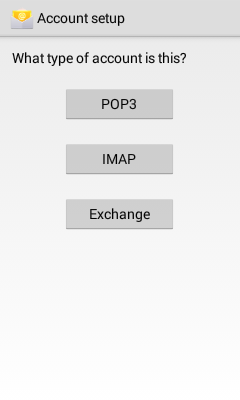
- Choose the type of email account you will be using.
- POP3: POP3 will download the emails from the server and store them on your phone.
- IMAP: IMAP will store the emails on the server and show a cached copy on your phone.
- Exchange: Exchange is not supported as it requires a Microsoft Exchange server
Incoming Server Settings
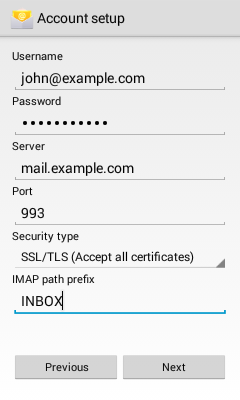
- Username: Please enter your full email address
- Password: The password for your email address.
- IMAP server: This is typically your domain name preceded by “mail.”
- Port:
- Non Secure (No SSL): 143
- Secure (SSL): 993
- Tap Next.
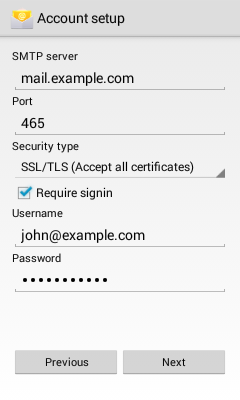
Outgoing Server Settings how to set up an email account on Android
how to set up an email account on Android
- SMTP server: This is typically your domain name preceded by “mail.”
- Port:
- Non Secure (No SSL): 25 or 26
- Secure (SSL): 465
- Require sign-in Check this as you will need to authenticate with the SMTP server.
- Username: Please enter your full email address
- Password: The password for your email address.
- Tap Next.
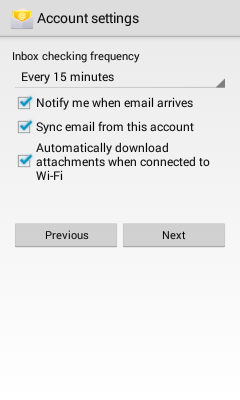
Account Options on how to set up an email account on Android
Account Option on how to set up an email account on Android
- Email Checking Frequency: Set how often you would like your device to check for new emails.
Note: The more often you check your email the more drain it will cause on your battery.
- Send email from thise account by default Check this option if this will be your default email address
- Notify me when email arrives: Leave this checked if you would like to be notified of new email messages.
- Tap Next.
Name the account
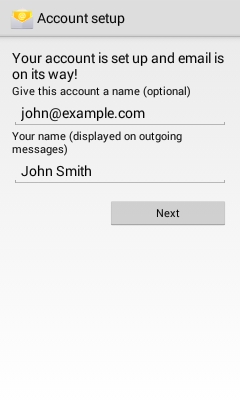
- If you would like you can name the email account, this can be helpful if you have multiple accounts on the one device.
- Enter the name you would like to be shown on all outgoing emails that you send from the device.
- Tap Done.