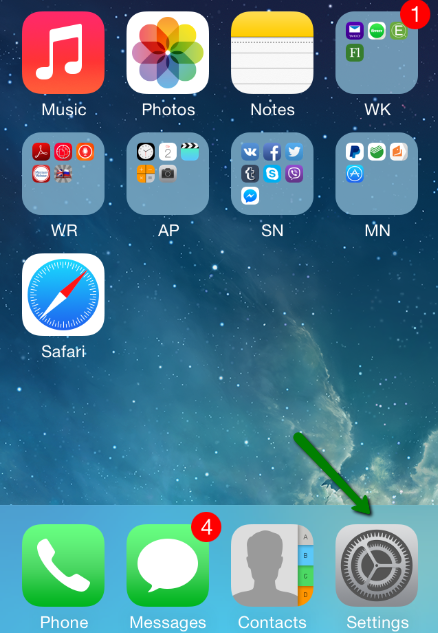
1. Select Settings from the home screen of your iPhone:
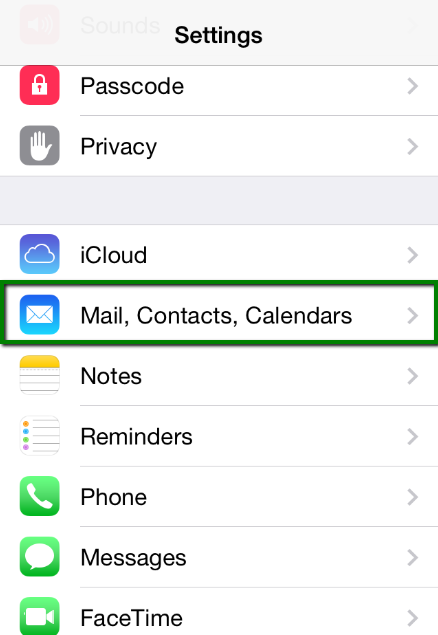
2. Choose Mail, Contacts, Calendars and click Add Account:
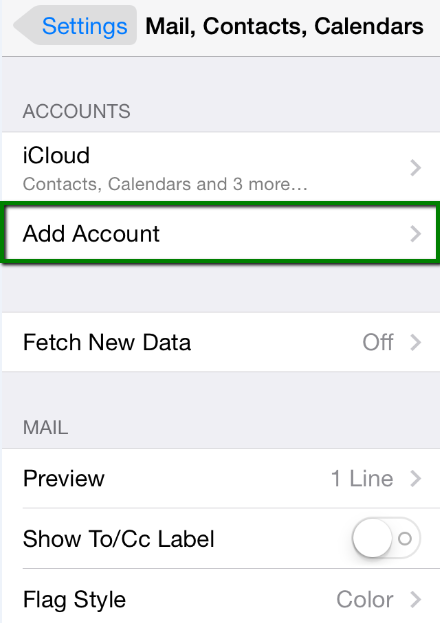
3. The third step on how to set up an email account on Apple iPhone.
Choose Other from the list that appears:
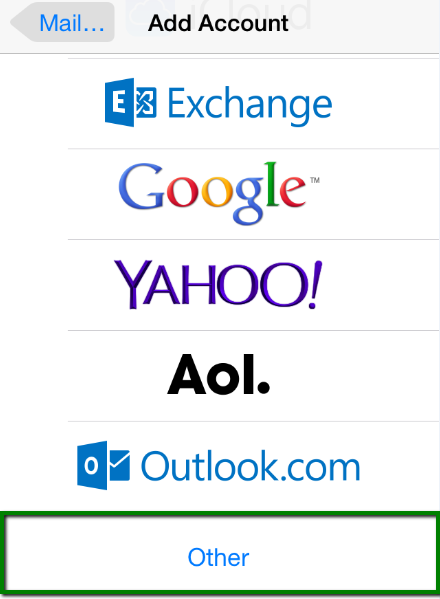
4. The fourth step on how to set up an email account on iPhone,
select Add Mail Account. In the New Account menu, you will need to specify the following records:
- Name – your name (will appear as sender name)
- Address – your full email address, as created in the cpanel
- Password – the password for this email address
- Description – lets you specify any description (we suggest you use your email address)

Click Next.
5. Select protocol type: IMAP or POP3. We advise you to use IMAP.

Your selection will be highlighted in blue.
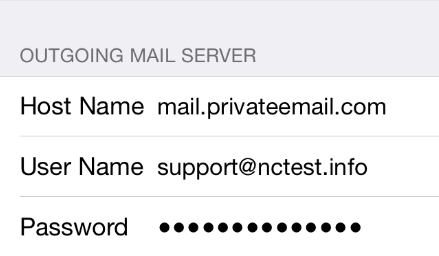
6. Settings are the same for both IMAP and POP3:
- Name, Address and Description: should have been already filled in
- Host name: mail.privateemail.com
- User Name: your email address
- Password: password for your email
In the fields for both Incoming Mail Server and Outgoing Mail Server, indicate the following settings:
Click Next.
7. If you use IMAP, you can enable the following services:
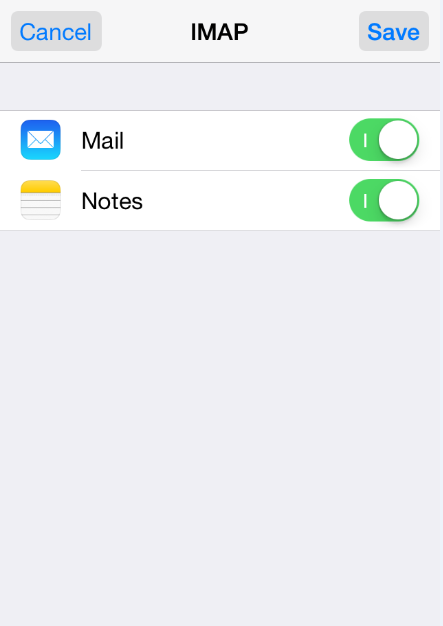
Click Save and wait while the system completes necessary checks.
8. The Eith step on how to set up an email account on iPhone.
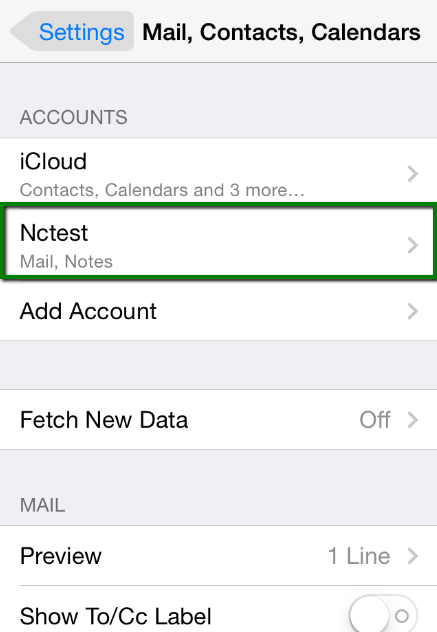
When the checks are finished, you’ll be redirected to the Mail, Contacts, Calendars screen. Choose your newly created account there:
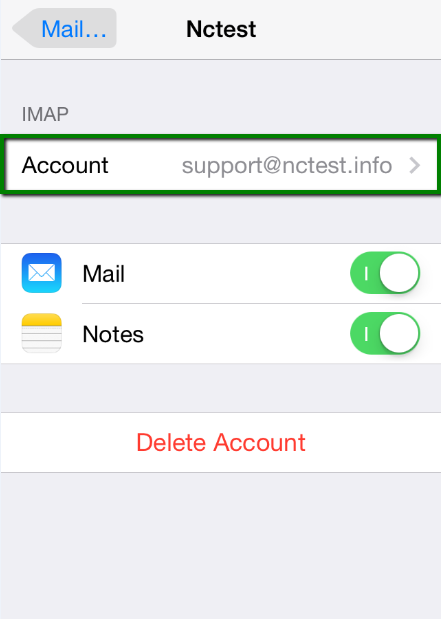
9. Scroll down and select Advanced:
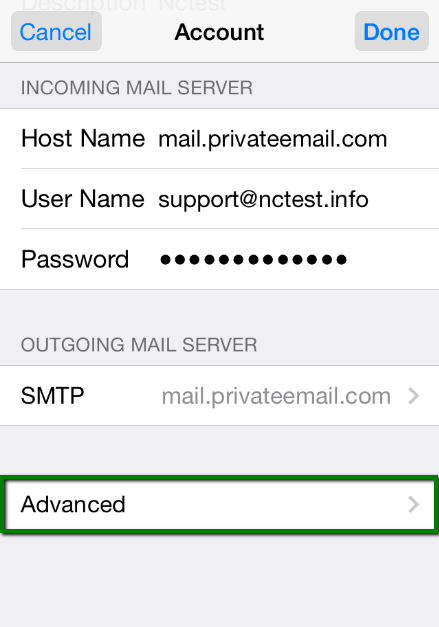
10. Here you can choose additional settings for IMAP or POP3.
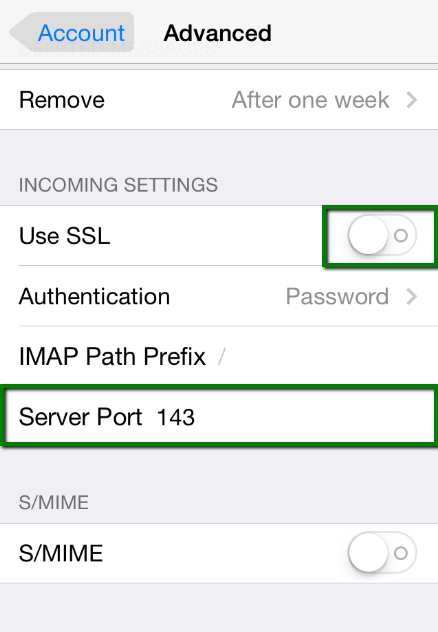
If you set an IMAP connection, you need to use port 993 (with SSL) or port 143 (without SSL).
Set IMAP Path Prefix to INBOX:
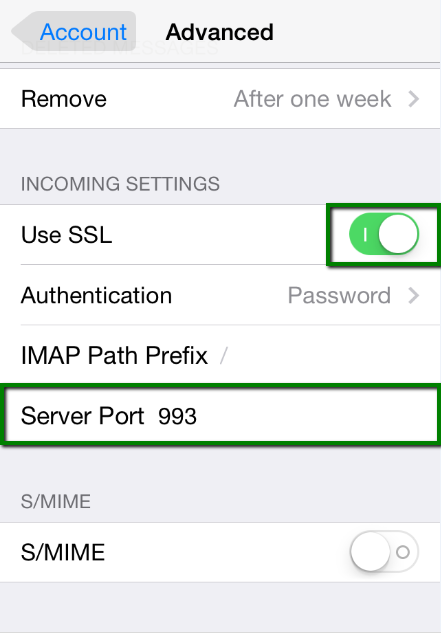
or
If you chose POP3, you need to use port 995 (with SSL) or port 110 (without SSL):
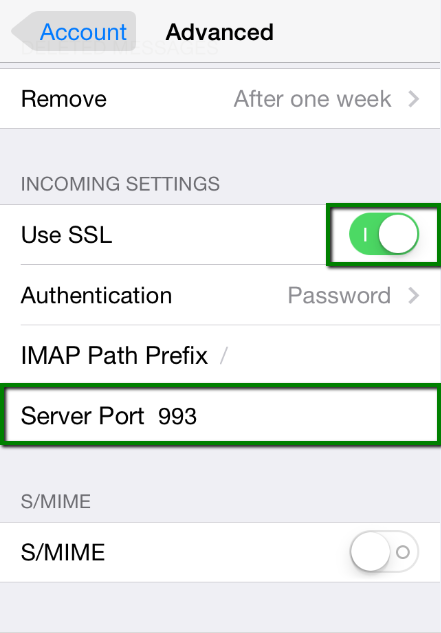
or
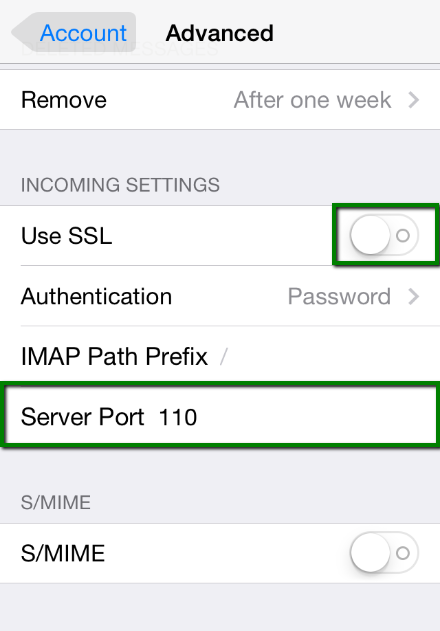
11. In order to set up additional settings for the outgoing server.
You will need to return in the previous menu and then go to Outgoing Mail Server by clicking on the hostname of the server:
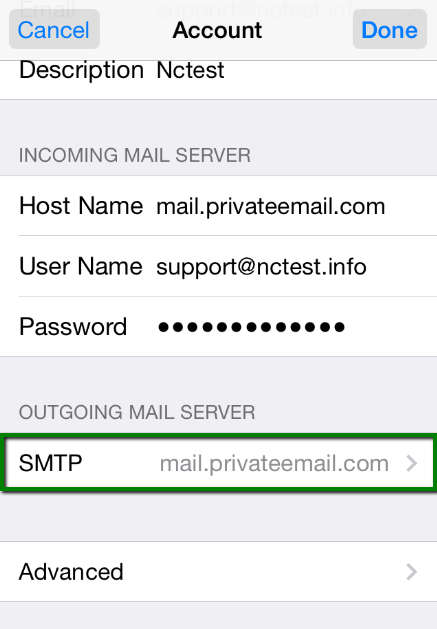
12. The twelfth step on how to set up an email account on iPhone
Outgoing Server (SMTP), select port 465 (with SSL) or port 587 (without SSL):
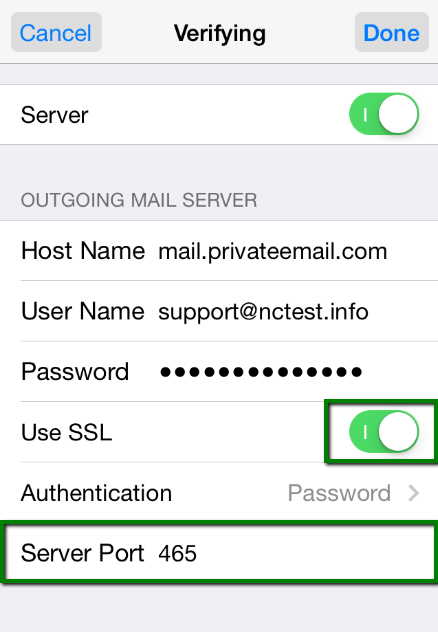
or
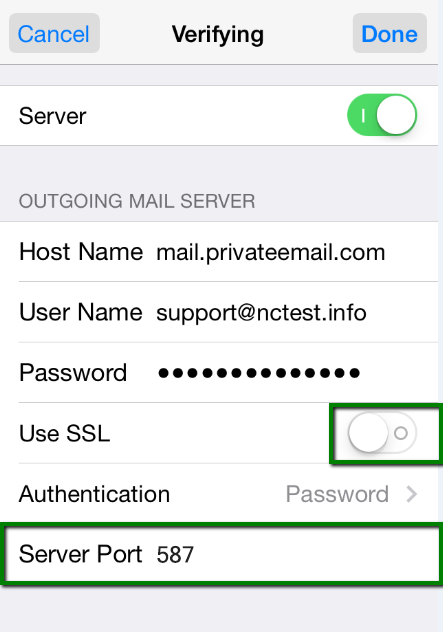
Once the settings are verified, your account is active and ready to use.
To test your new email account, go to Messages and try sending and receiving emails.